How to use ADAS.2
Overview
Patients use ADAS.2 on their iPhone to record the summary of daily activities for up to 7 hours per Activity Session. Fetched data would be stored on a Remote Server and linked to an anonymous ID auto assigned to the patient followed by the first data upload. Collected data also stored in a tiny size file in ADAS.2 application space on the used phone. That means that this file is not visible for ADAS.2 application only and will be permanently destroyed by ADAS.2 uninstallation.
ADAS.2 does not collect any private user information.
Patients see an easy to understand summary of collected data on their phones and may share it with their physicians.
ADAS.2 may be used for:
- Recording the Activity Sessions and Clinical Symptoms. (“Start” button at Main screen)
- Upload collected data to the Remote Data Centre for Processing. (“Upload” button at Main Screen)
- Visualize the summary of collected data. (“My Progress” button at Main screen)
Before you start
At the first usage:
- Select the Session Length by corresponding button. (“Session Length” button at Main screen)
Note: Do not change the selected values for the next 90 days to make collected data comparable.
Start session:
- Click the Start button, read and understand the pop-up dialog and touch the “OK” button.
Note: This will start the recording and deactivate the buttons except “My Progress” one until selected session time will expire.
- Put the application in the background. You can also remove it
from the background if you like.
- Place the phone in the chosen location on your body (pocket, tethered pouch or so).
- Feel free to continue with your normal daily activities.
Stop session:
- The session will be automatically stopped when the session time expires.
Upload:
The data you had collected with ADAS.2 should be transferred to the remote Data Centre for processing.
You can do this at any time.
- Click the Upload button to transfer finished sessions to the remote Data Centre.
- Wait for the Success message.
Note: For Upload to function, the phone should be connected to Wi-Fi or a valid Cell Data plan is required. If both are available, then Wi-Fi will be used.
My Progress:
The “My Progress” is an ADAS.2 feature to show users a short summary of processed data.
At any time, when you are not running: a Session Recording or using Upload:
- Touch the ADAS.2 icon to run the application.
- Click the "My Progress" button and see timely parameters of your Average (AV), Max (MX) and Total (TE) session Efforts. The Efforts are measured activity is quantized into E-units (E) which are the 'Efforts' per a defined time slot. You may ignore the thin lines with AV & MX. Horizontal axis represents consecutive session numbers.
Footnote:
Your anonymized User ID assigned to you by the ADAS system will be
shown on My Progress Screen.
When you are uninstalling the ADAS.l from your phone, all pieces of ADAS.2 will be removed.
If you install ADAS.2 back, a new User ID would be assigned to you by the system. For security reasons, there is no way to connect a new ID with your old ID as well as your previous data already collected on the database server.
ADAS team.
Note: ADAS team keeps a right to limit / delete the patient collected data or block some particular IDs from data upload.
(Last updated Jan 18, 2021)
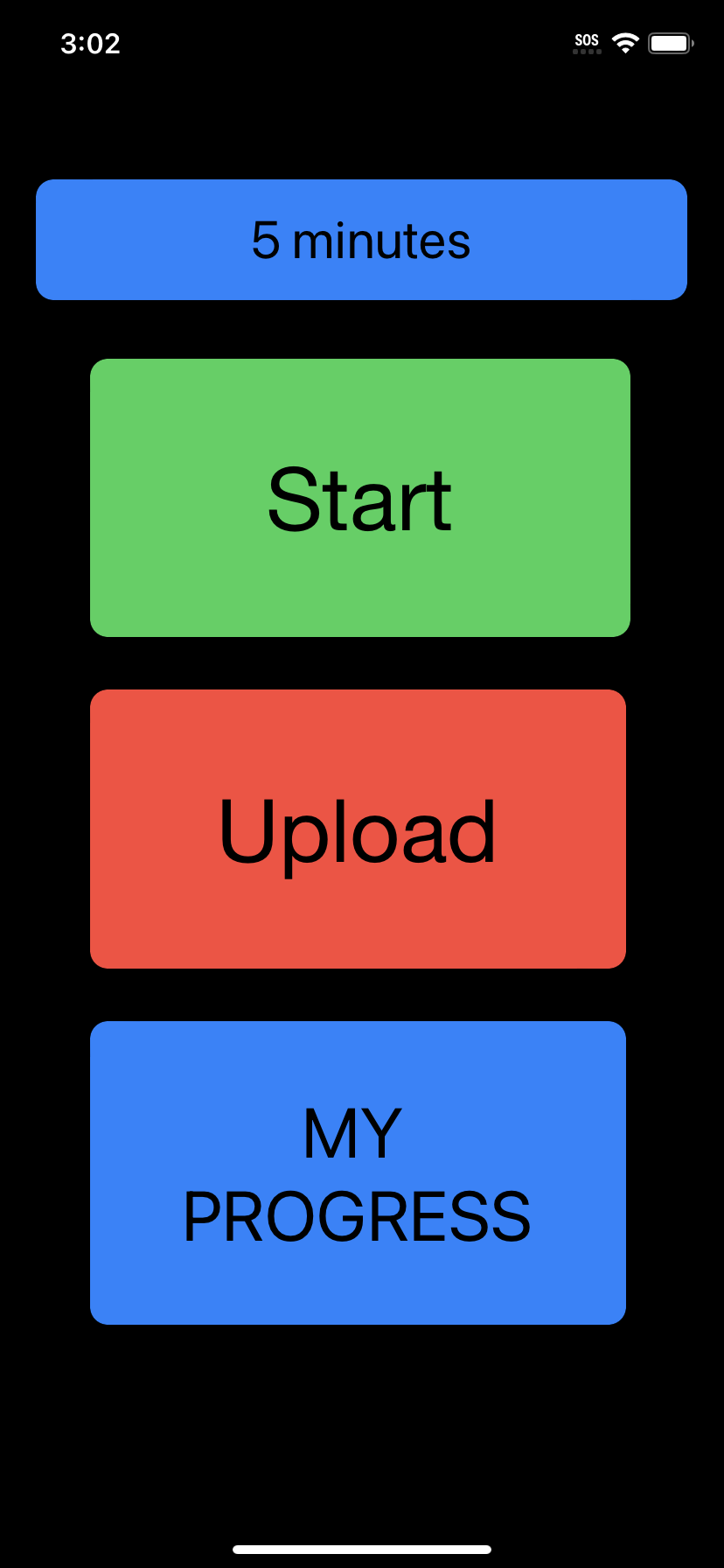
pic Main |
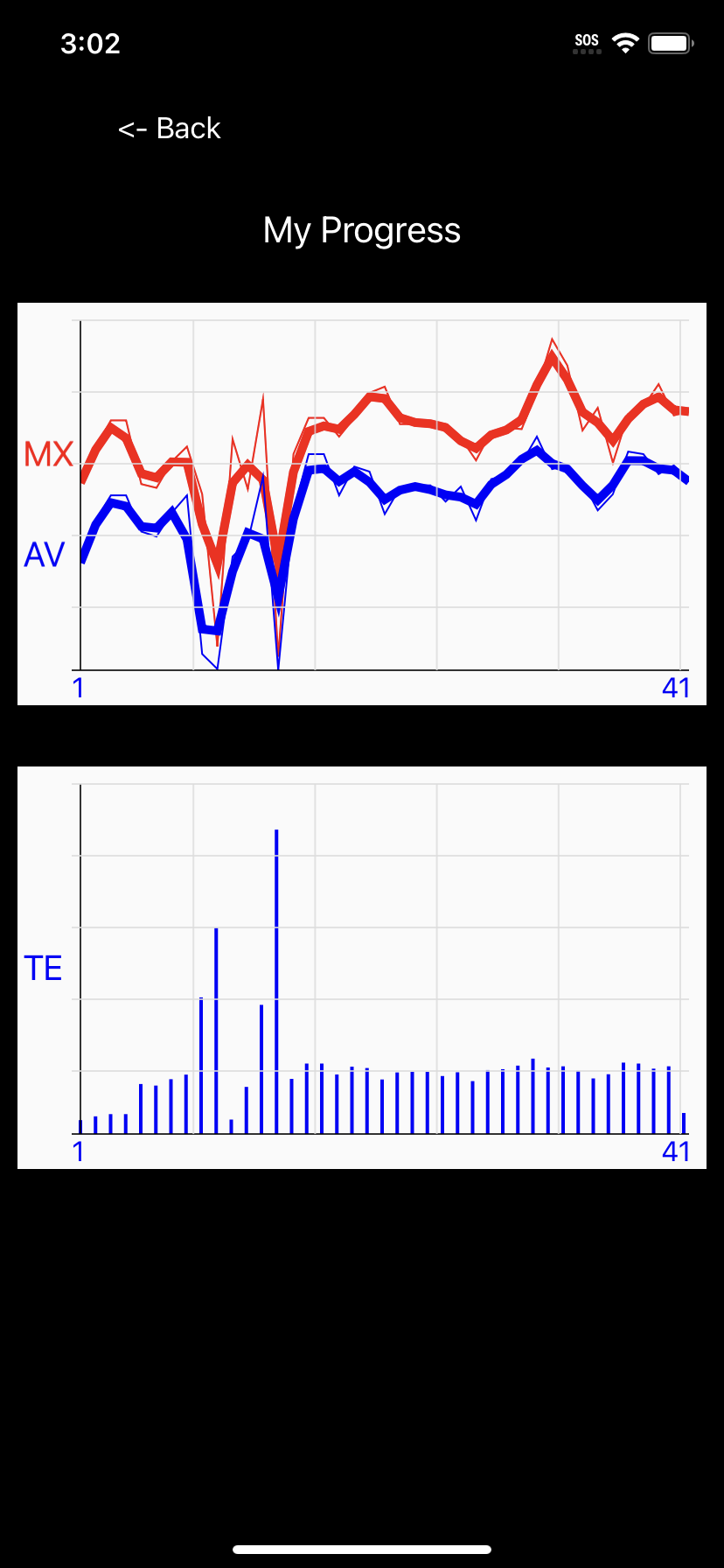
pic My Progress |