How to use ADAS.l
Overview
Patients use ADAS.l on their iPhone to record daily walking, running or cycling activities for up to 60 minutes per Activity Session. Clinical symptoms development will be collected weekly by BASDAI, BASFI question sets. Fetched data would be stored on a Remote Server and linked to an anonymous ID auto assigned to the patient followed by the first data upload.
ADAS.l does not collect any private user information or permanently store data on user phones.
Patients see an easy to understand summary of collected data on their phones and may share it with their physicians.
ADAS.l may be used for:
- Recording the Activity Sessions and Clinical Symptoms. (The Start, Stop buttons, pic. Main)
- Upload collected data to the Remote Data Centre for Processing. (The Upload button, pic. Main)
- Download the simplified summary of processing results. (“My Progress” button, pic. Main)
Before you start
At the first usage:
- Select the Activity and Phone Location by using the corresponding top buttons.
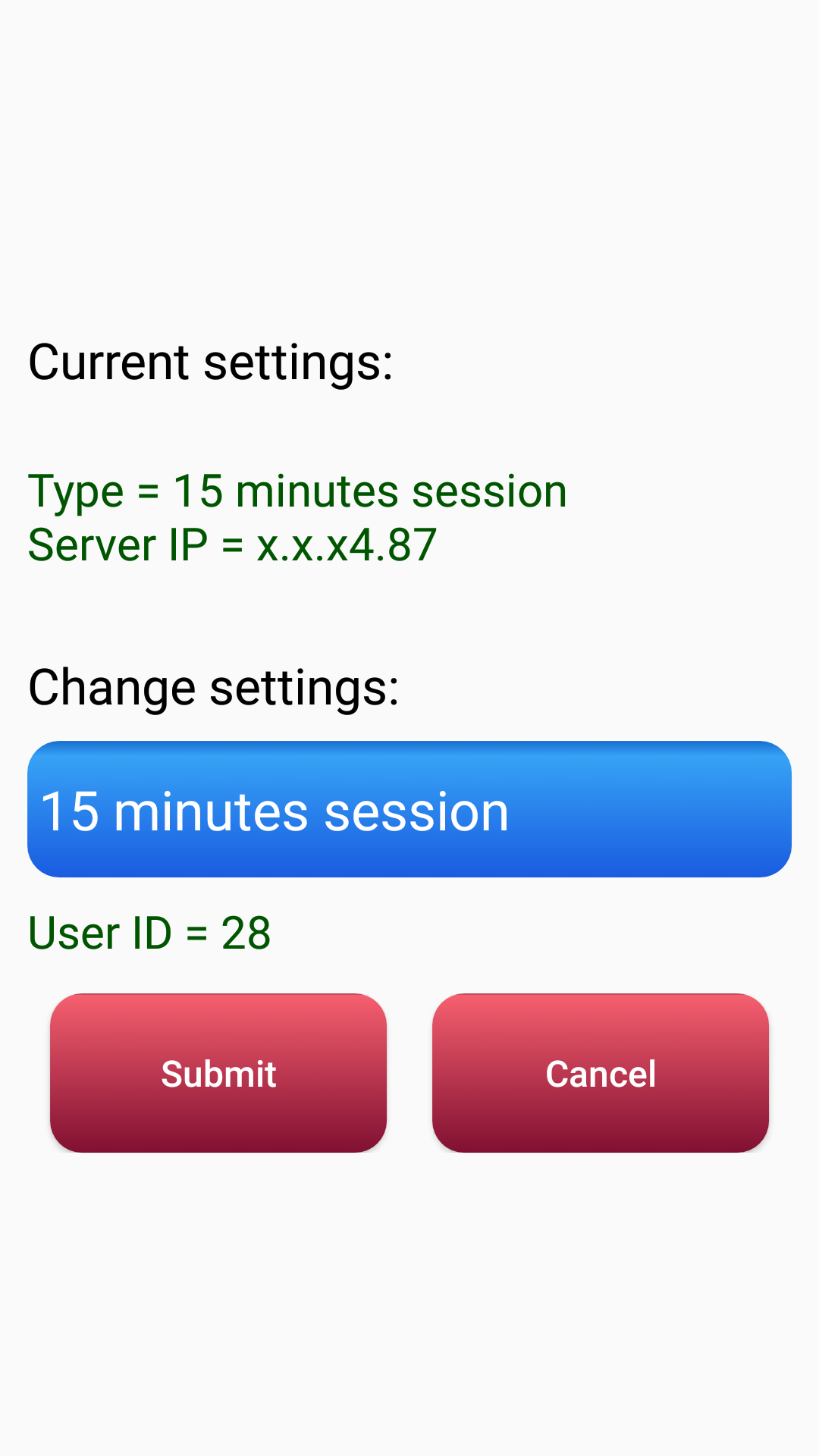
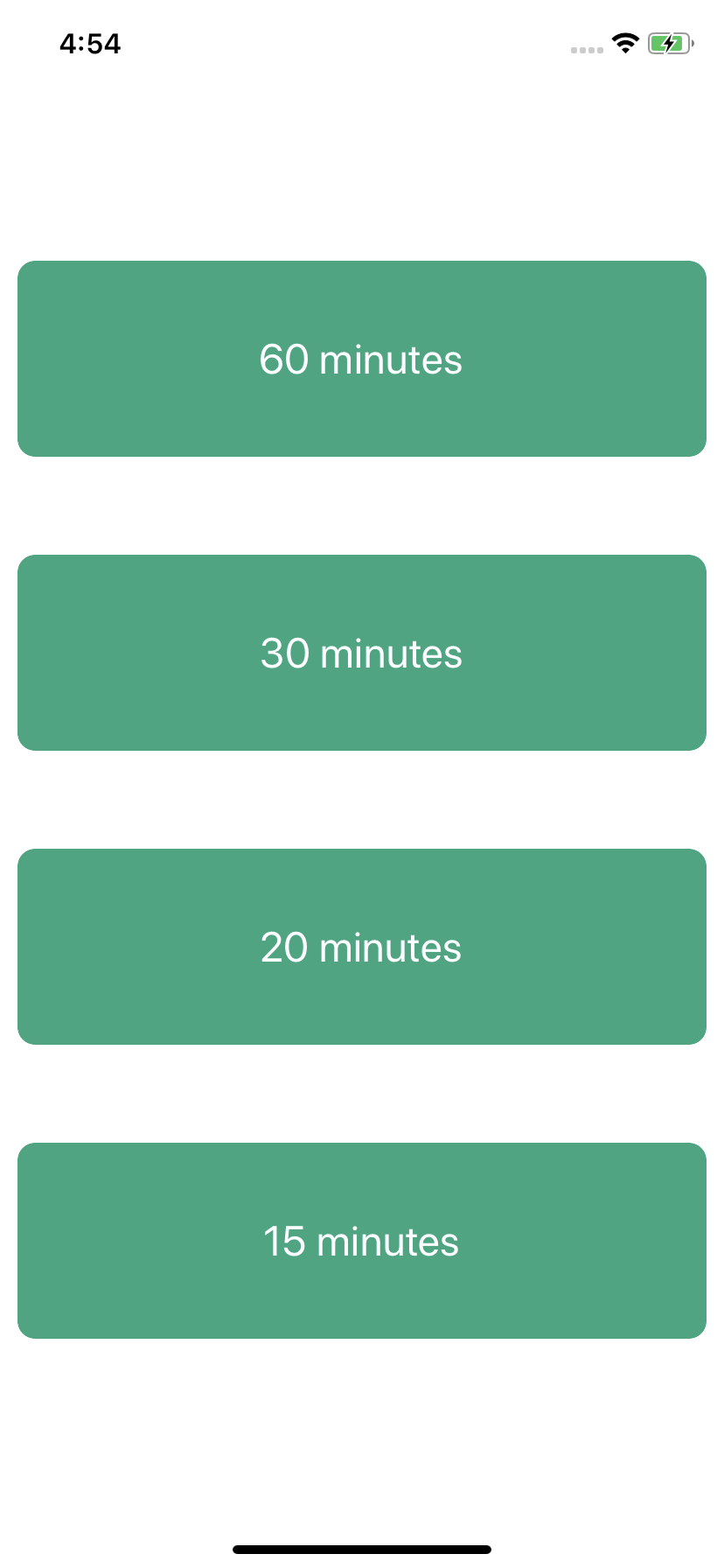
- Click the Settings button. On the next screen, select the Session Duration as 15, 20, 30 or 60 min (pic Settings, Settings_2_iPhone_only).
Note: Do not change those values for the next 90 days to make collected data comparable.
Start session:
- Switch phone to airplane mode.
Note: This is preferable, because incoming call erases the Recording Session.
- Click the Start button, read and understand the pop-up dialog and touch the “OK” button.
Note: The bottom Slider would be moved to far left; The Phone screen may become dim right away or a bit later. That would mean that Activity Recording has started. .
- Apply screen soft protector
Note: Always, protect the complete phone screen with at least a 5 mm thick soft foam cover secured by 2 rubber bands as shown on pic.Foam_1, Foam_2
- Do not touch the Side (ON / OFF) button. Keep the phone running.
Note: The phone screen MUST be lit up during a complete ADAS.l recording session
- Place the phone in the chosen location on your body (pocket, tethered pouch or so).
- Follow the chosen Activity for selected session duration.
Stop session:
- Take the phone from your pocket, pouch or so.
- Remove the foam cover.
- Move the bottom Slider to the far right.
Note; That will restore your usual phone screen brightness and bring the pop-up dialog as reminded to use the Stop button for stopping the Activity recording. Click “OK
- Click the Stop button to actually finish the Recording.
Interview:
At the first ADAS.l usage and every 7th day thereafter, you would be asked to respond to BASDAi & BASFI questionnaires. If the questionnaire screen is presented and stays, then it is time for the interview.
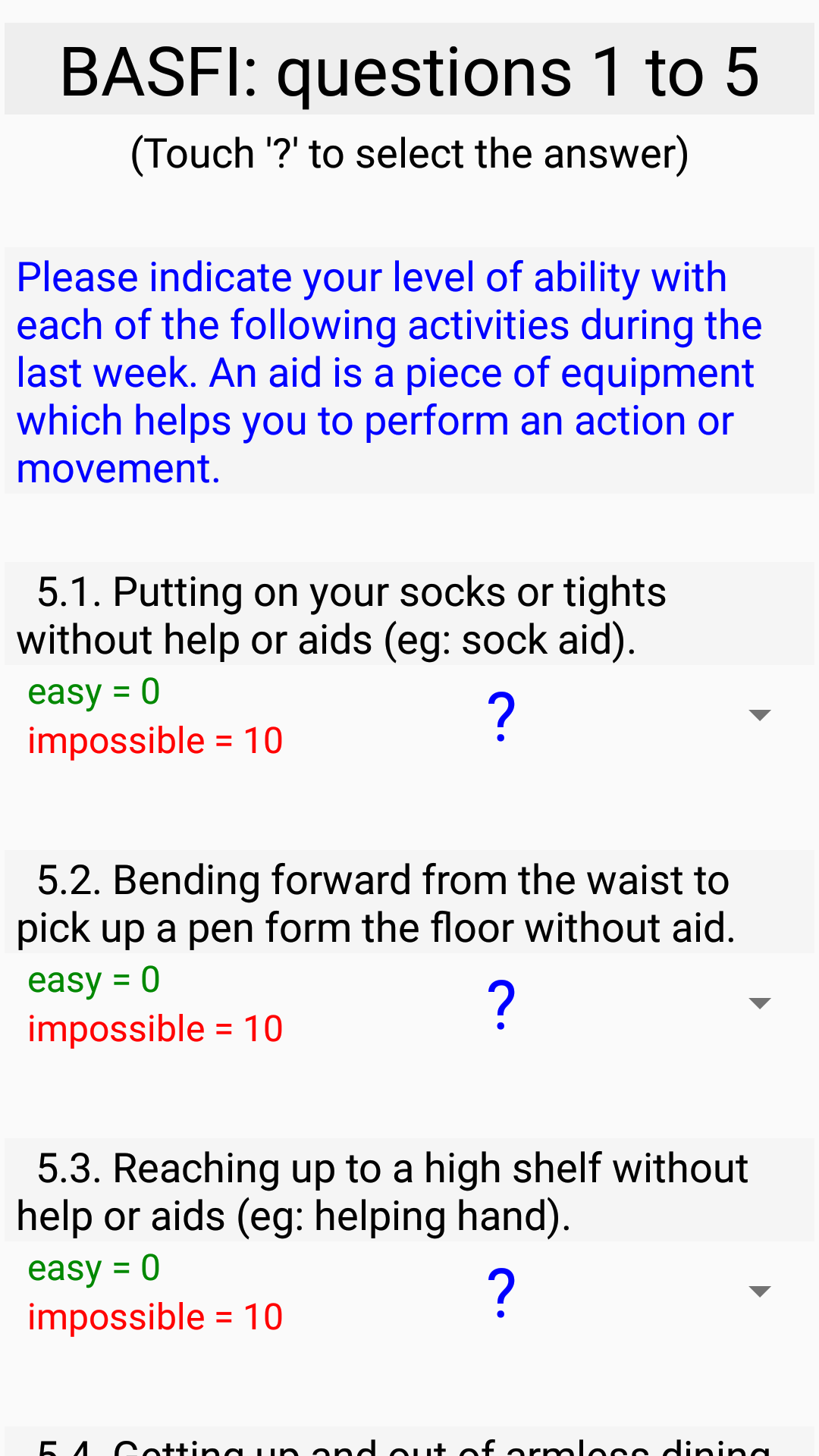
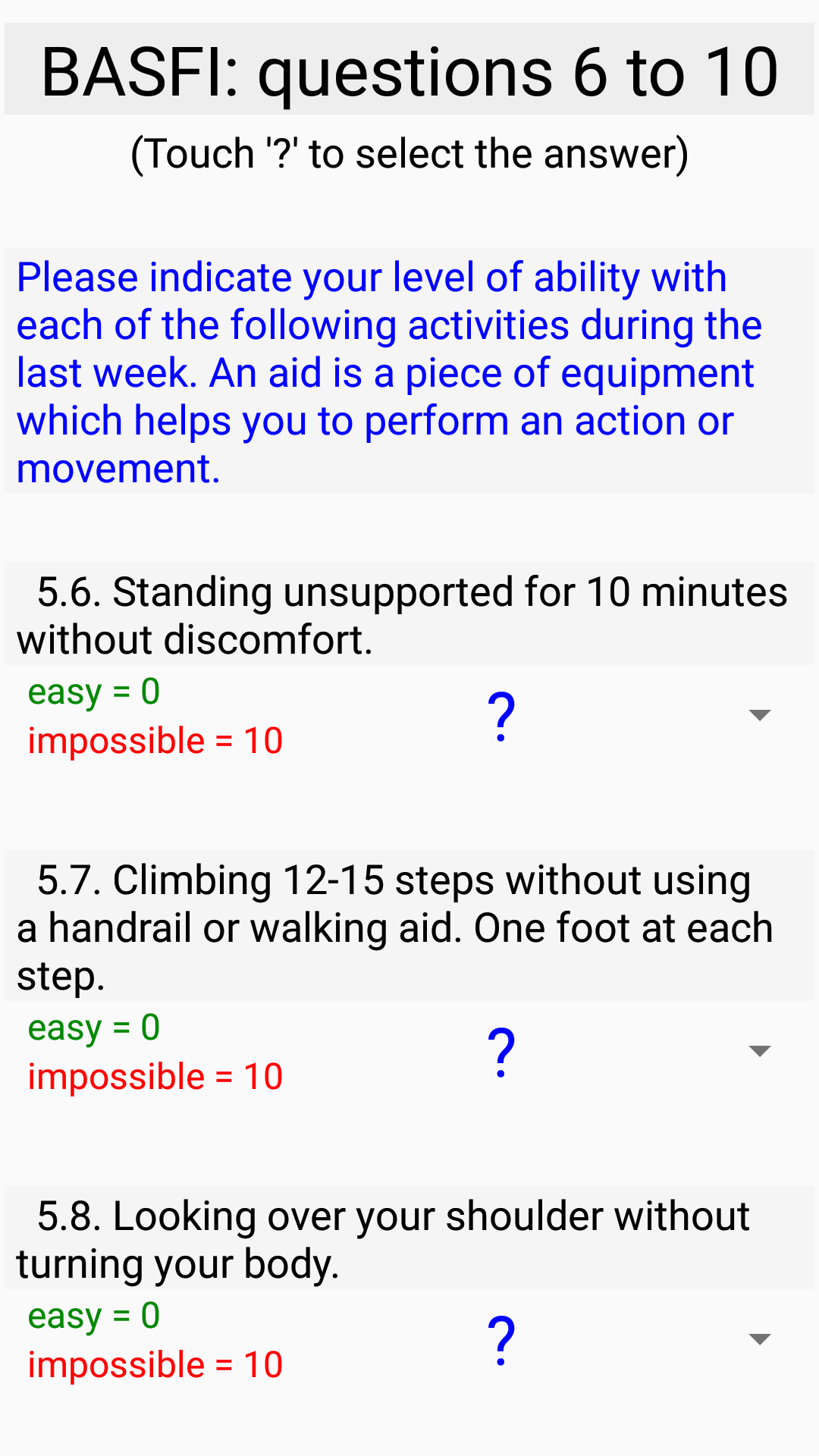
- Answer the questions. There will be 3 consecutive screens with BASDAI & BASFI questions (pic BASDAI, BASFI_1, BASFI_2).
- Use the Next button to move to the upcoming screen.
- Use the Done button on the last screen.
Now, you are done. You had recorded the complete session.
- Please remember to Switch OFF the phone Airplane mode.
- You may work with other phone apps or switch the phone screen OFF.
- Please be advised that sessions, which are less than 20% of chosen session duration, may be auto discarded by remote server as too short to process.
Upload:
The data you had collected with ADAS.l should be transferred to the remote Data Centre for processing.
You can do this right after you finish the session or you can collect several sessions and upload them at once.
- Click the Upload button to transfer finished sessions to the remote Data Centre.
- Wait for the Success message.
Note: For Upload to function, the phone should be connected to Wi-Fi or a valid Cell Data plan is required. If both are available, then Wi-Fi will be used.
My Progress:
After the recorded Activity session was uploaded to the remote Data Centre, it would be processed. The “My Progress” is an ADAS.l feature to show users a short summary of processed data.
At any time, when you are not running: a Session Recording or using Upload:
- You can bring ADAS.l on phone screen
- Click the "My Progress" button and see the timely parameters of your Activities and Interview scores.
Note: My Progress will start to work after the first 2 uploaded sessions. My Progress requires
Wi-Fi or a valid Cell Data plan to function.
Understanding "My Progress":
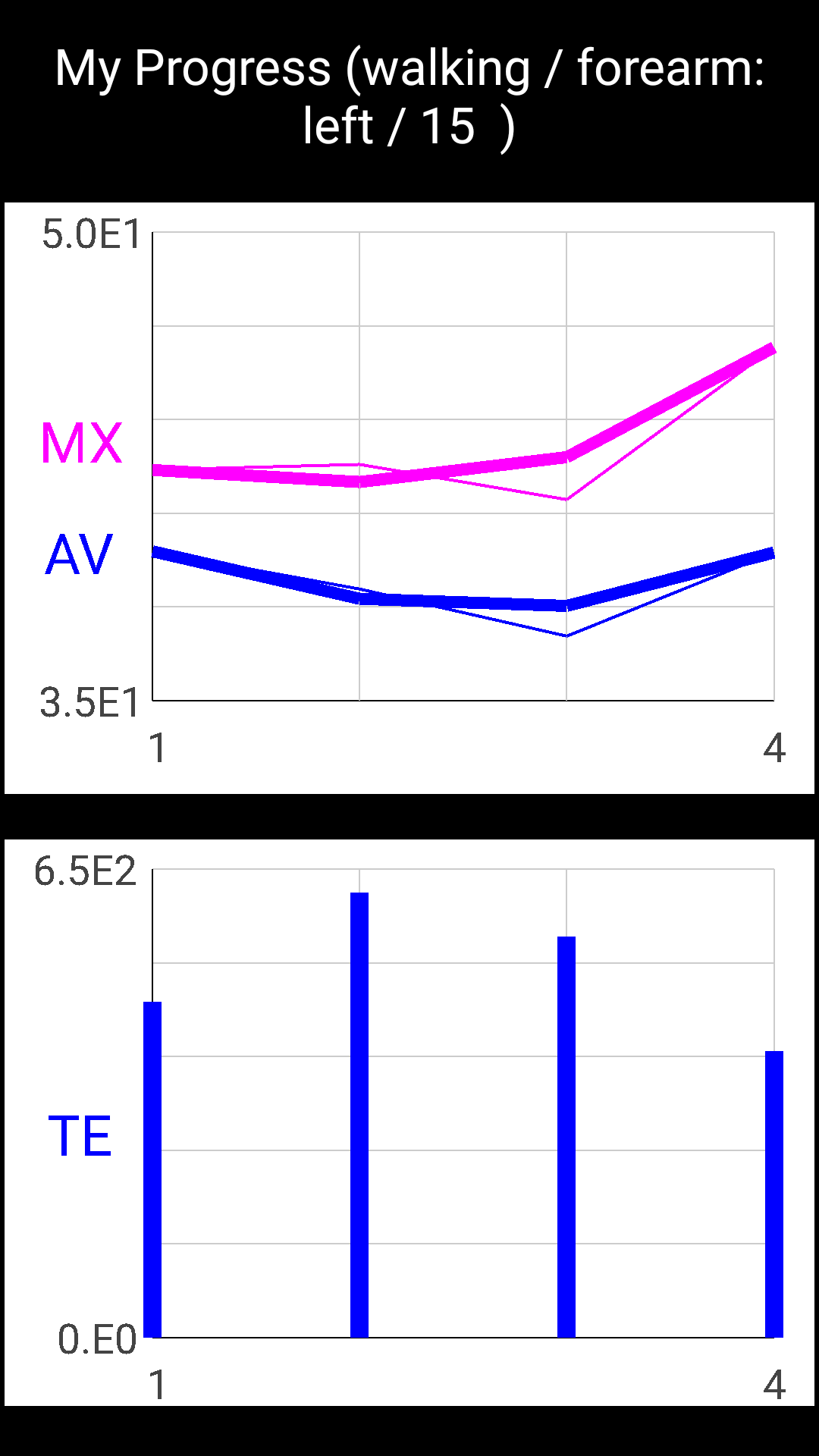
Measured activity is quantized into E-units (E) which are the 'Efforts' per a defined time slot.
- Upper screen: Width Red line indicates the maximum E noticed at the particular session; Blue - the averaged E per the same session (pic My_Progress_1). (Ignore the thin lines.)
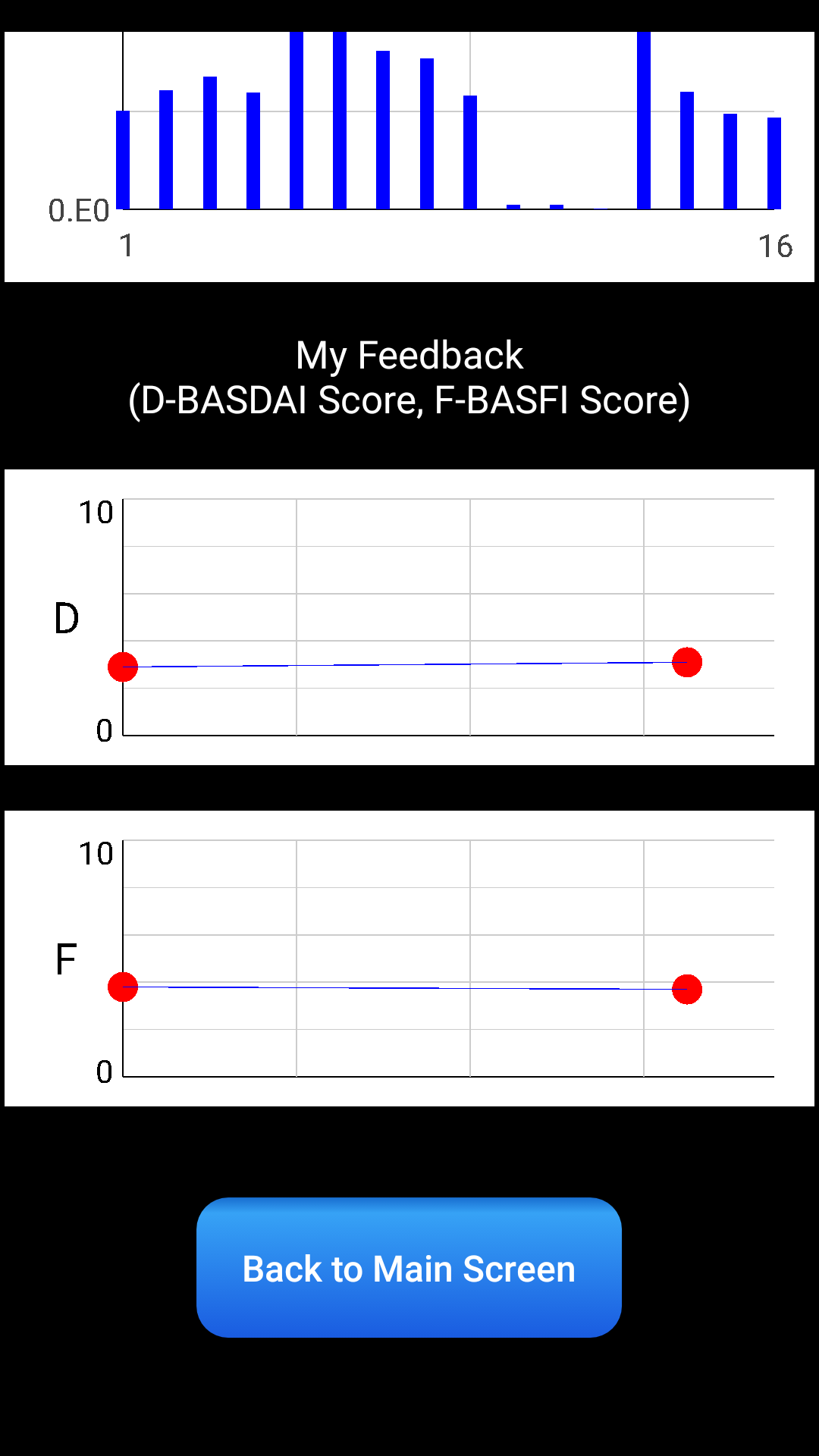
- Next screen: Total E units spent per the session.
- Next Screen: BASDAI score per the session (pic. My_Progress_2)
- Last Screen: The same for BASFI (pic. My_Progress_2).
Note: Horizontal axis is a consecutive session number.
Footnote:
If you are interested to know the anonymized User ID assigned to you by the ADAS system, you may click the Setting button and look for a number next to User ID on the incoming screen.
When you are uninstalling the ADAS.l from your phone, all pieces of ADAS.l will be removed.
If you install ADAS.l back, a new User ID would be passed to you by the system. For security reasons, there is no way to connect a new ADAS.l installation with your already collected data on the server.
ADAS team.
Note: ADAS team keeps a right to limit / delete the patient collected data or block some particular IDs from data upload.
(Last updated Nov 24, 2021)
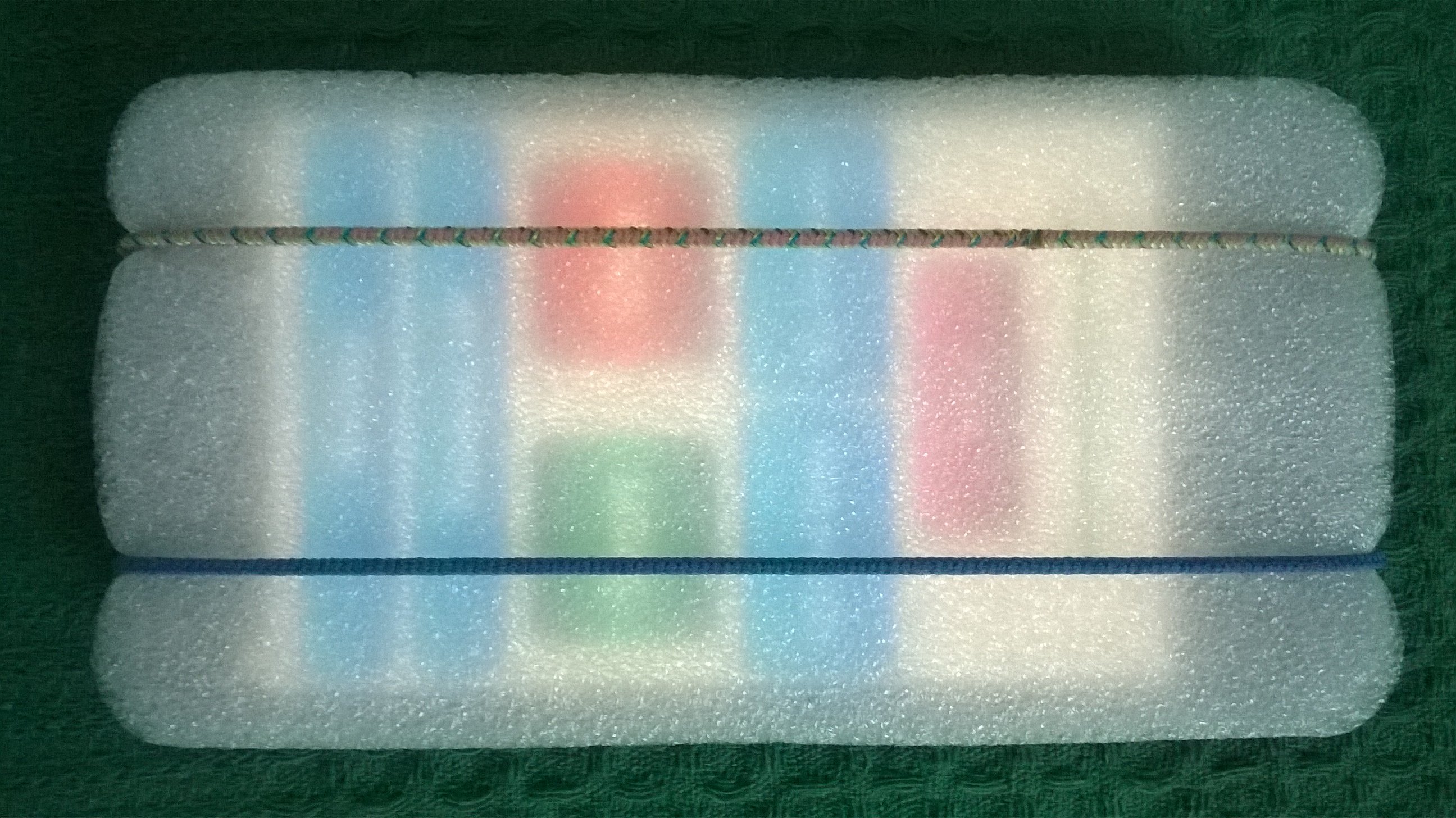
pic Foam_1 |
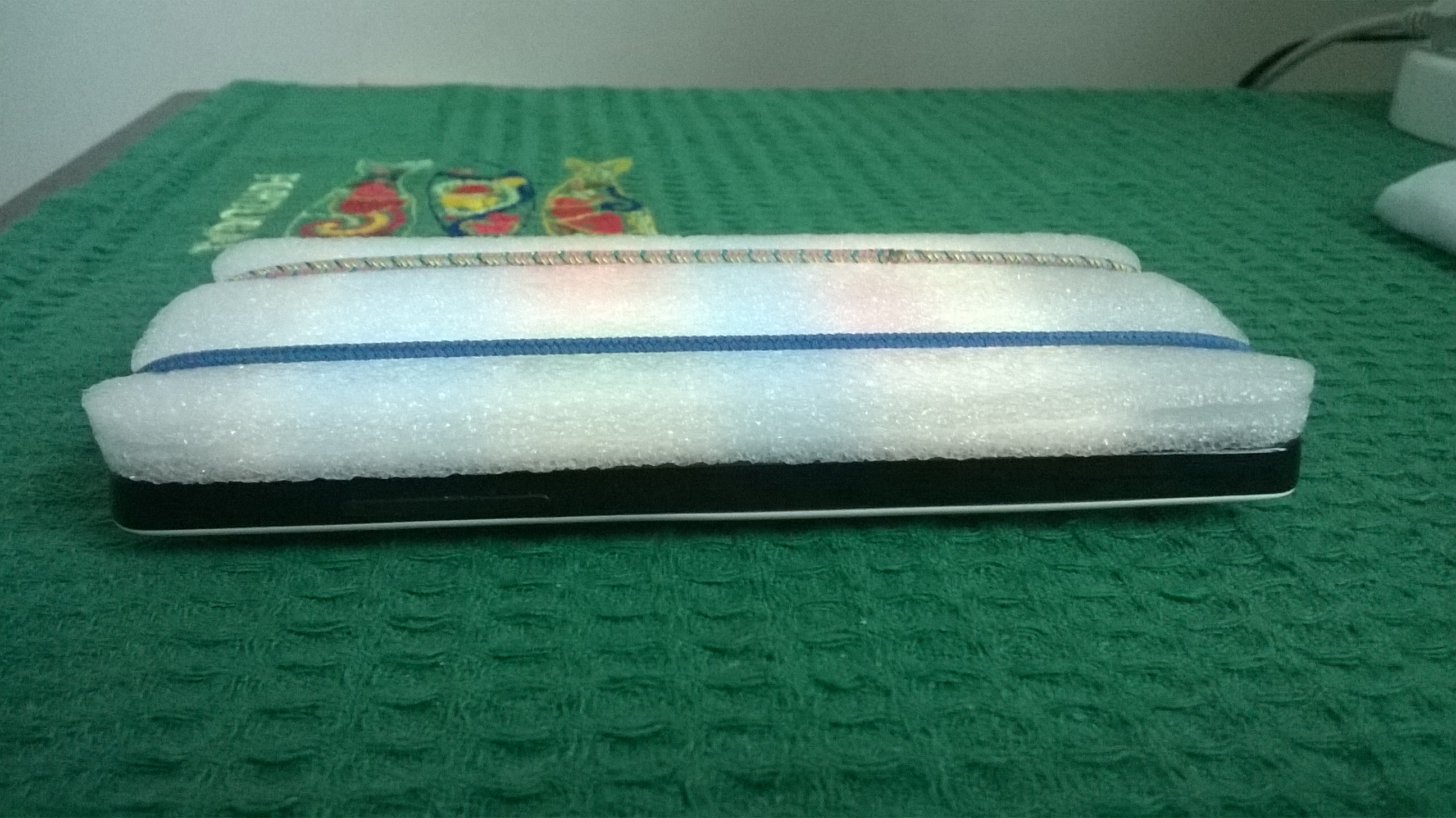
pic Foam_2 |
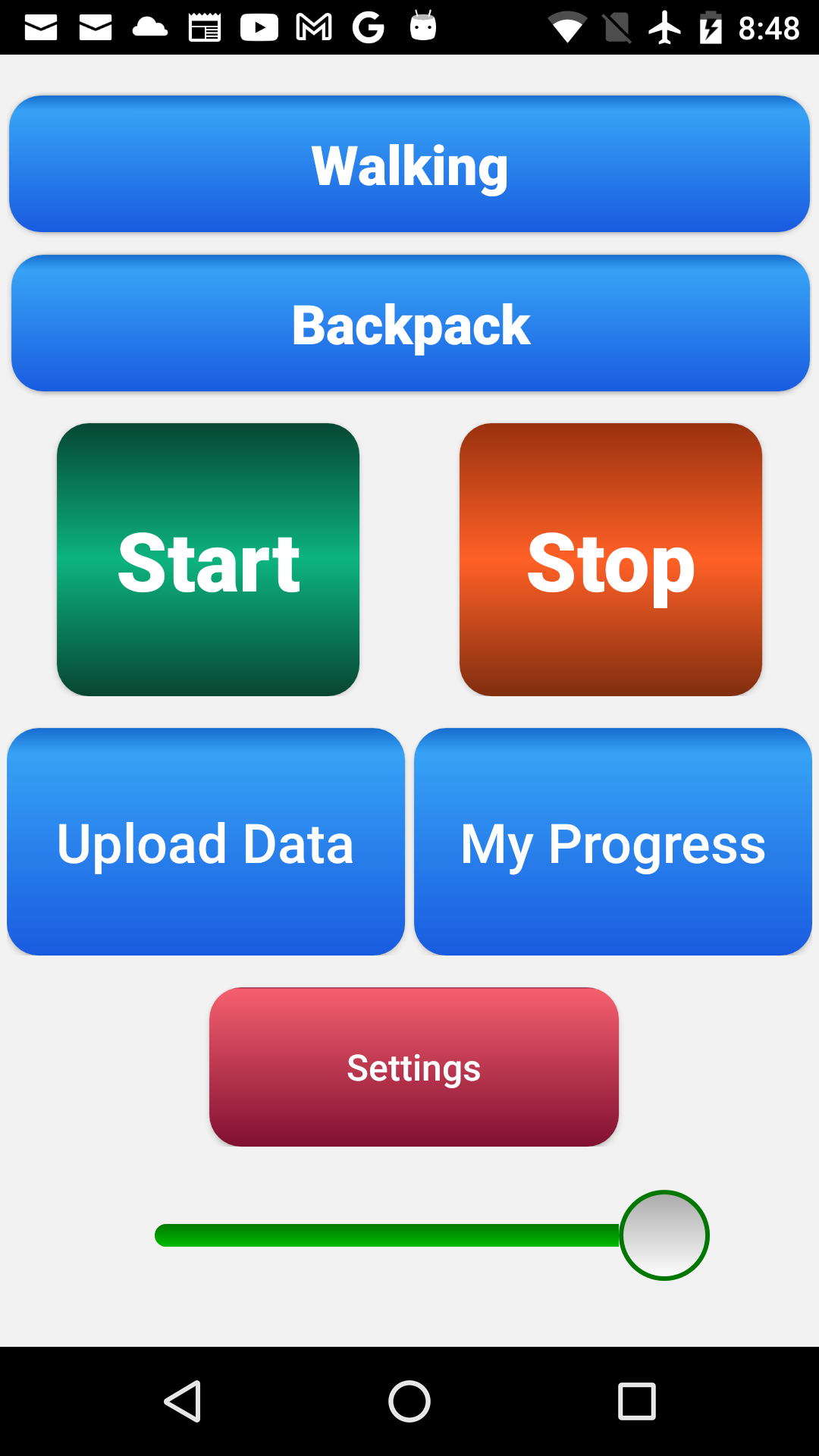
pic Main |
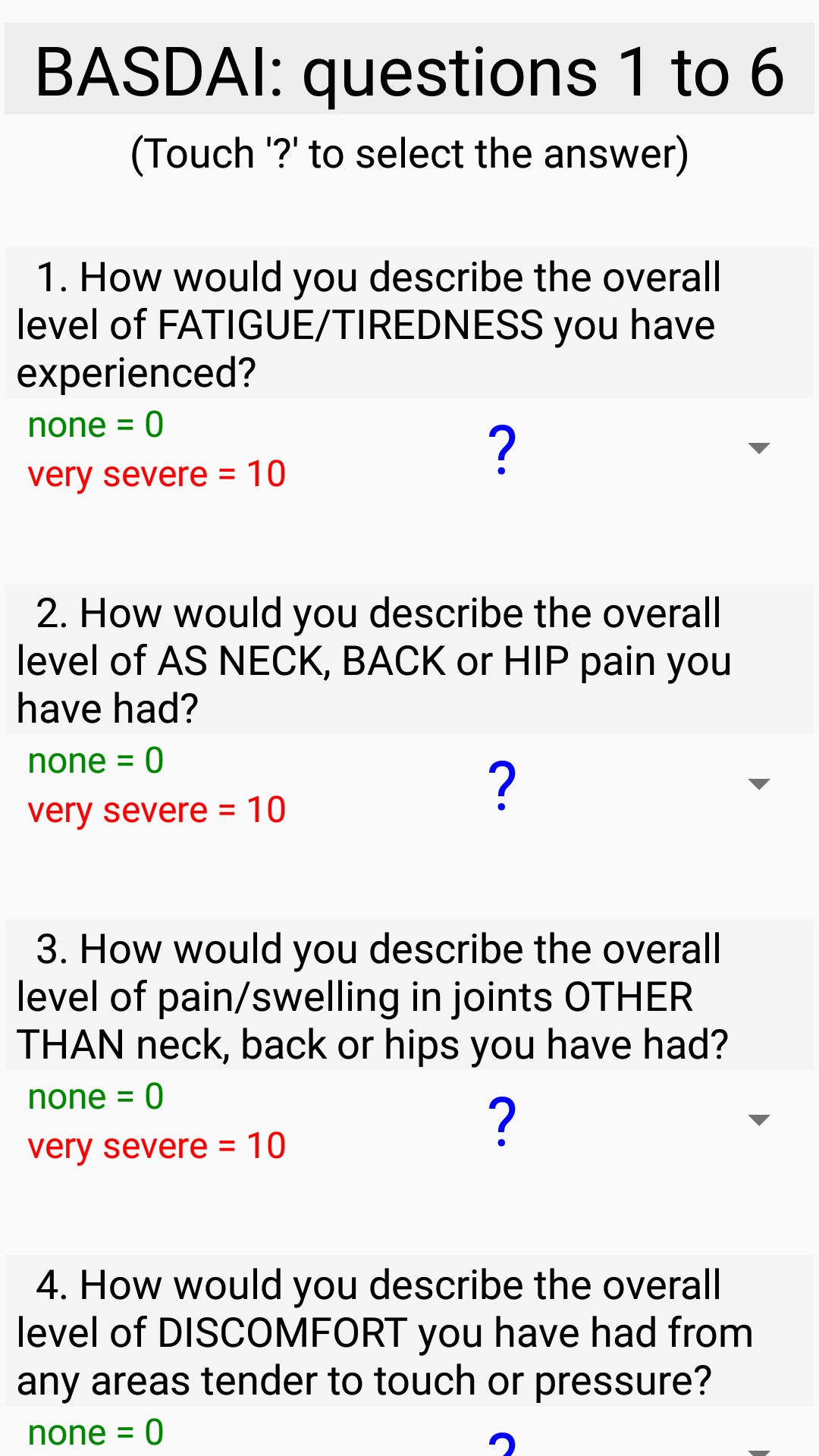
pic BASDAI_1 |
pic BASFI_1 |
pic BASFI_2 |
pic My_Progress_1 |
pic My_Progress_2 |
pic Settings |
pic Settings_2_iPhone_only |