How to use DAS.l
(All mentioned pictures can be found at the bottom of the page)
Overview
Patients use DAS.l on their own Android or iPhone devices to record the weekly development of clinical symptoms by answering the BASDAI and BASFI questionnaires. The fetched data would be stored on a Remote Server and linked to an anonymous ID auto assigned to the patient followed by the first data upload. This anonymous ID cannot be linked to any particular person until the DAS.l user has disclosed that he is an ID holder.
DAS.l does not collect any private user information or permanently store data on the user phones.
Patients use the My Progress DAS.l functionality for self-monitoring their wellbeing and sharing this information with their physicians.
DAS.l may be used for:
- Recording development of Clinical Symptoms. (The Start Interview button, pic Main_DAS)
- Upload collected data to the Remote Data Centre for Processing. (The Upload button, pic Main_DAS)
- Download the simplified summary of processed results. (“My Progress” button, pic Main_DAS)
Before you start
Install DAS.l on your Android or iOS (iPhone) phone.
BASDAI and BASFI Interview:
Click the Start Interview button on the Main screen (pic Main_DAS). The questionnaires will be presented.
- Answer all questions. There will be 3 consecutive screens of BASDAI and BASFI questionnaires (pic BASDAI, BASFI_1, BASFI_2).
- Use the Next button (at the bottom of each screen) to move to the Following screen.
- Use the Save button on the Last screen.
Upload:
Collected data should be uploaded to the remote Data Centre for processing.
- Click the Upload button to transfer your interview answers to the remote Data Centre.
- Wait for the Success message.
Note: For Uploading to function, your phone should be connected to Wi-Fi or has a valid Cell Data plan. If both are available, then Wi-Fi will be used.
My Progress:
After uploading the Interview, it would be processed into the clinical markers at the remote Data Centre.
A simplified summary as several Scores charts, would be visible on “My Progress” screen.
- Click the "My Progress" button (pic Main_DAS). The 5 charts will be presented.
Note: For My Progress to function, your phone should be connected to Wi-Fi or has a valid Cell Data plan. If both are available, then Wi-Fi will be used.
Understanding "My Progress":
After the interview BASDAi & BASFI scores would be computed.
The My Progress Screen combines the 2 charts (pic My_Progress)
- The upper chart is your BASDAI score. The lower values mean the less severe symptoms.
- Next chart is your BASFI score. The lower values mean the less severe symptoms.
Note: Horizontal axis presents a consecutive interview number.
Footnote:
Your anonymized User ID would be assigned following the first Interview Upload.
- Click the Setting button. Look for the User ID on the Settings screen (pic Settings). You should not share your User ID but with your physician only.
Warring: If you chose to uninstall the DAS.l from your phone, then your User ID would be permanently lost.
If you decide to install DAS.l once again, then another USER ID will be assigned. For security reasons, there is no way to reconnect your phone to already collected data.
ADAS team.
Note: ADAS team keeps a right to limit / delete the patient collected data or block some particular IDs from data upload.
(Last updated April 19, 2022)

pic Main_DAS |

pic BASDAI |

pic BASFI_1 |
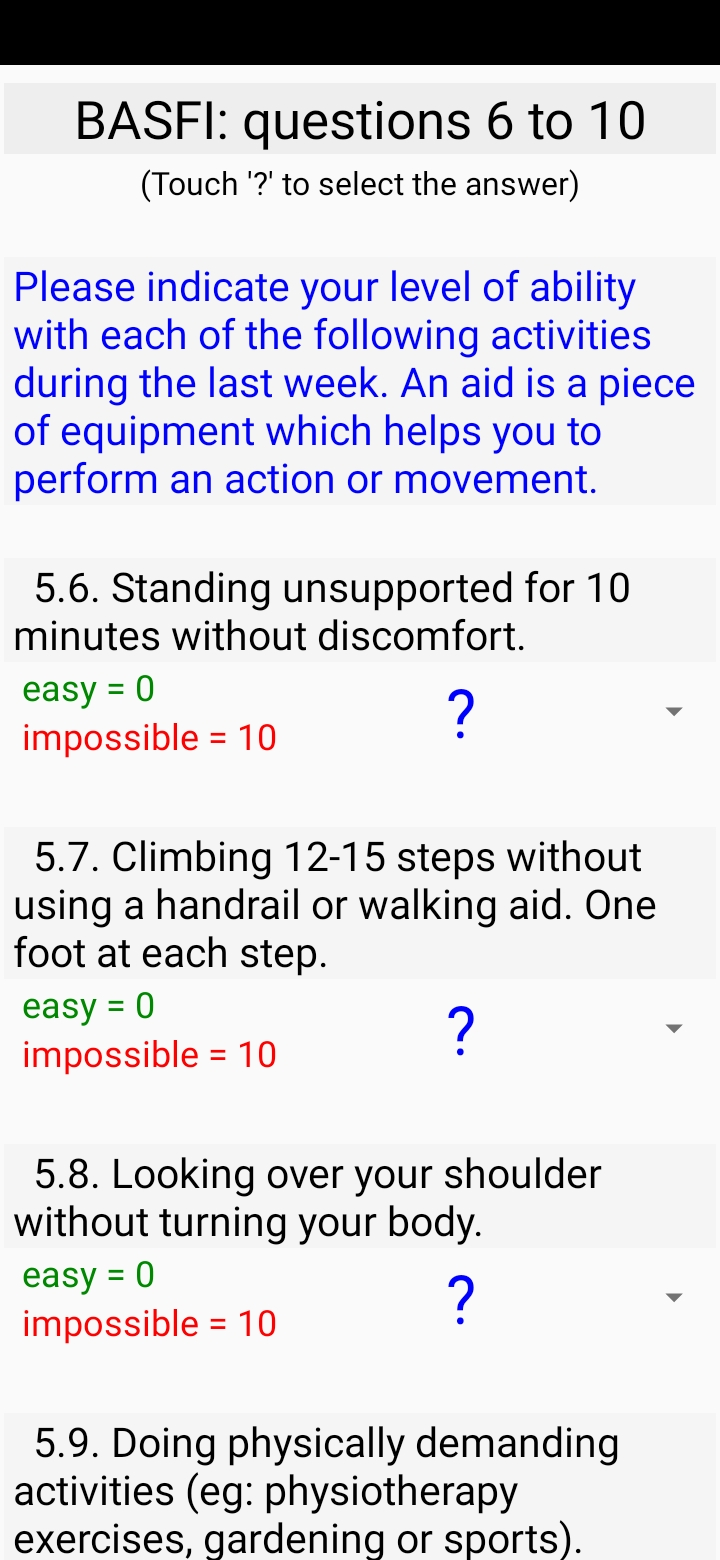
pic BASFI_2 |
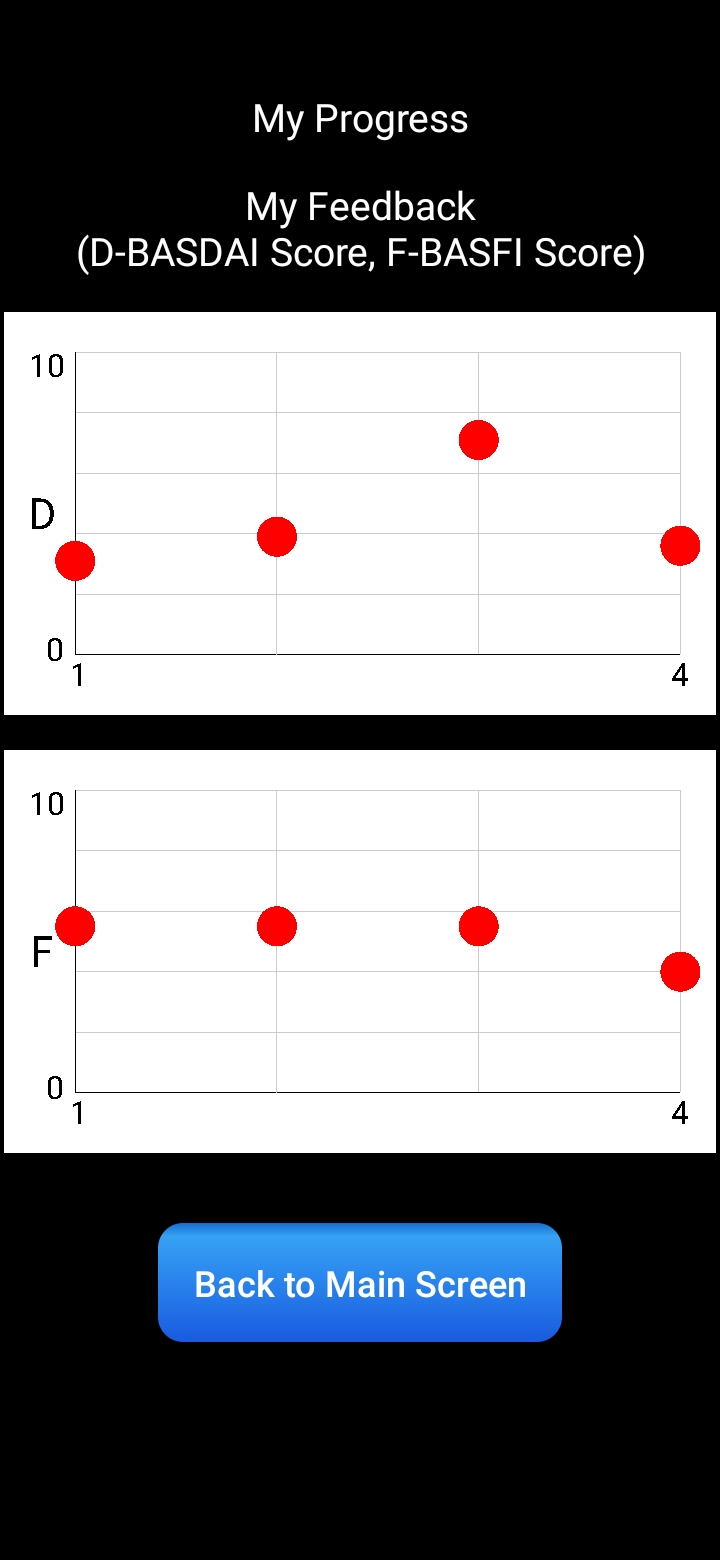
pic My_Progress |
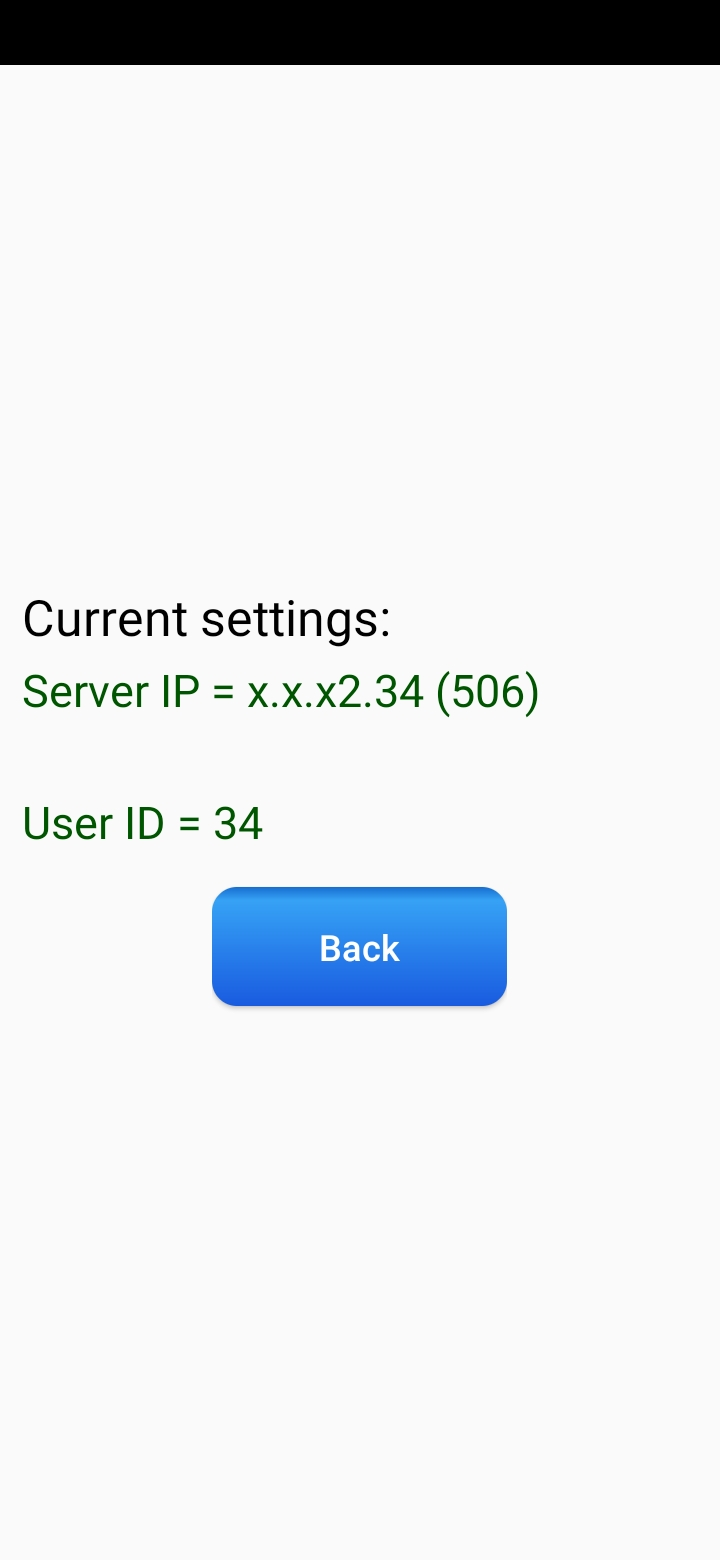
pic Settings |