How to use DAS.v
(All mentioned pictures can be found at the bottom of the page)
Overview
Patients use DAS.v on their own Android or iPhone devices to record the weekly development of clinical symptoms by answering the NPRS (Pain), BRAFs and FLARE questionnaires. The fetched data would be stored on a Remote Server and linked to an anonymous ID auto assigned to the patient followed by the first data upload. This anonymous ID cannot be linked to any particular person until the DAS.v user has disclosed that he is an ID holder.
DAS.v does not collect any private user information or permanently store data on the user phones.
Patients use the My Progress DAS.v functionality for self-monitoring their wellbeing and sharing this information with their physicians.
DAS.v may be used for:
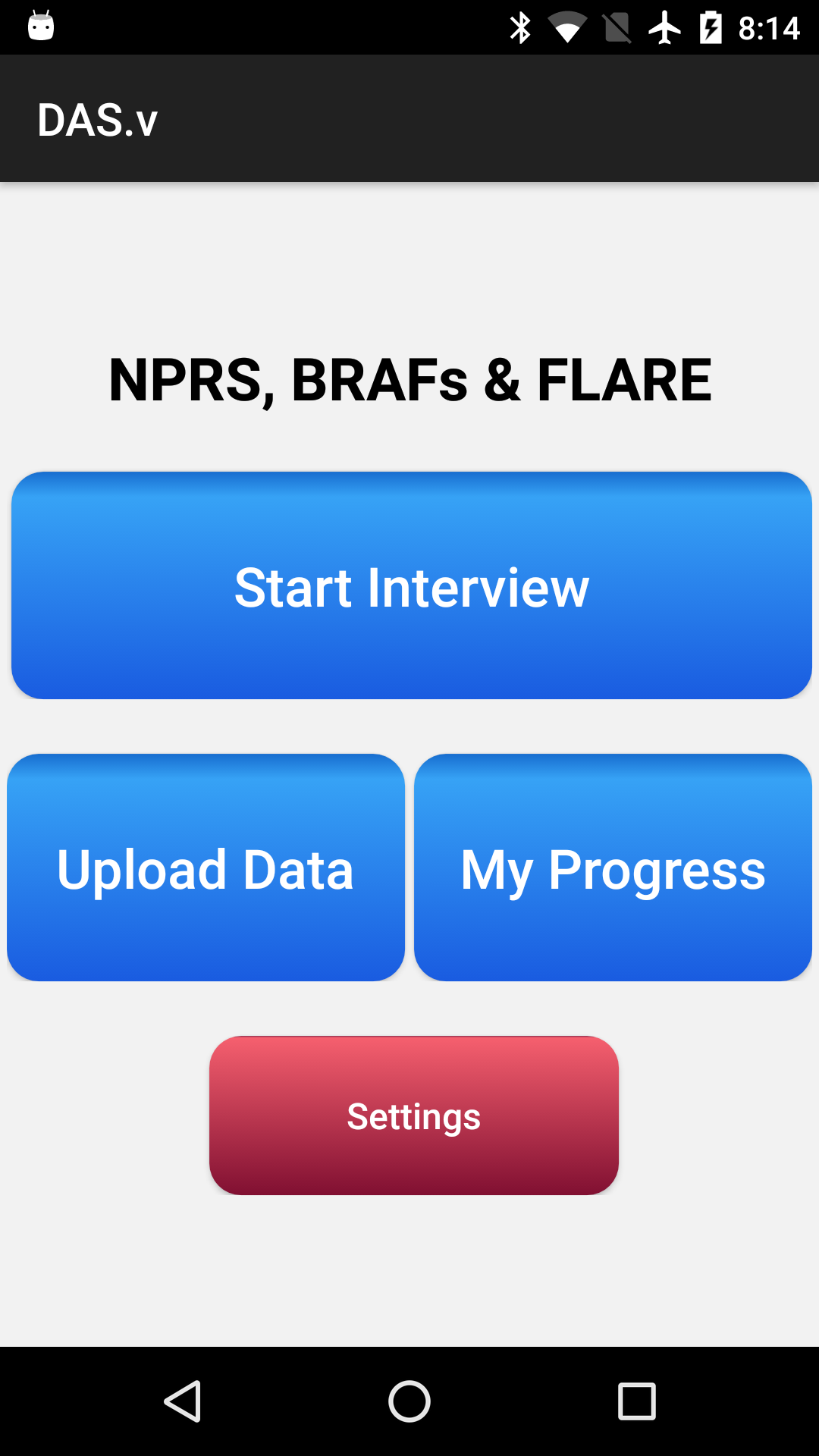
- Recording development of Clinical Symptoms. (The Start Interview button, pic Main_DAS)
- Upload collected data to the Remote Data Centre for Processing. (The Upload button, pic Main_DAS)
- Download the simplified summary of processed results. (“My Progress” button, pic Main_DAS)
Before you start
Install DAS.v on your Android or iOS (iPhone) phone.
BRAFs and FLARE Interview:
Click the Start Interview button on the Main screen (pic Main_DAS). The questionnaires will be presented.
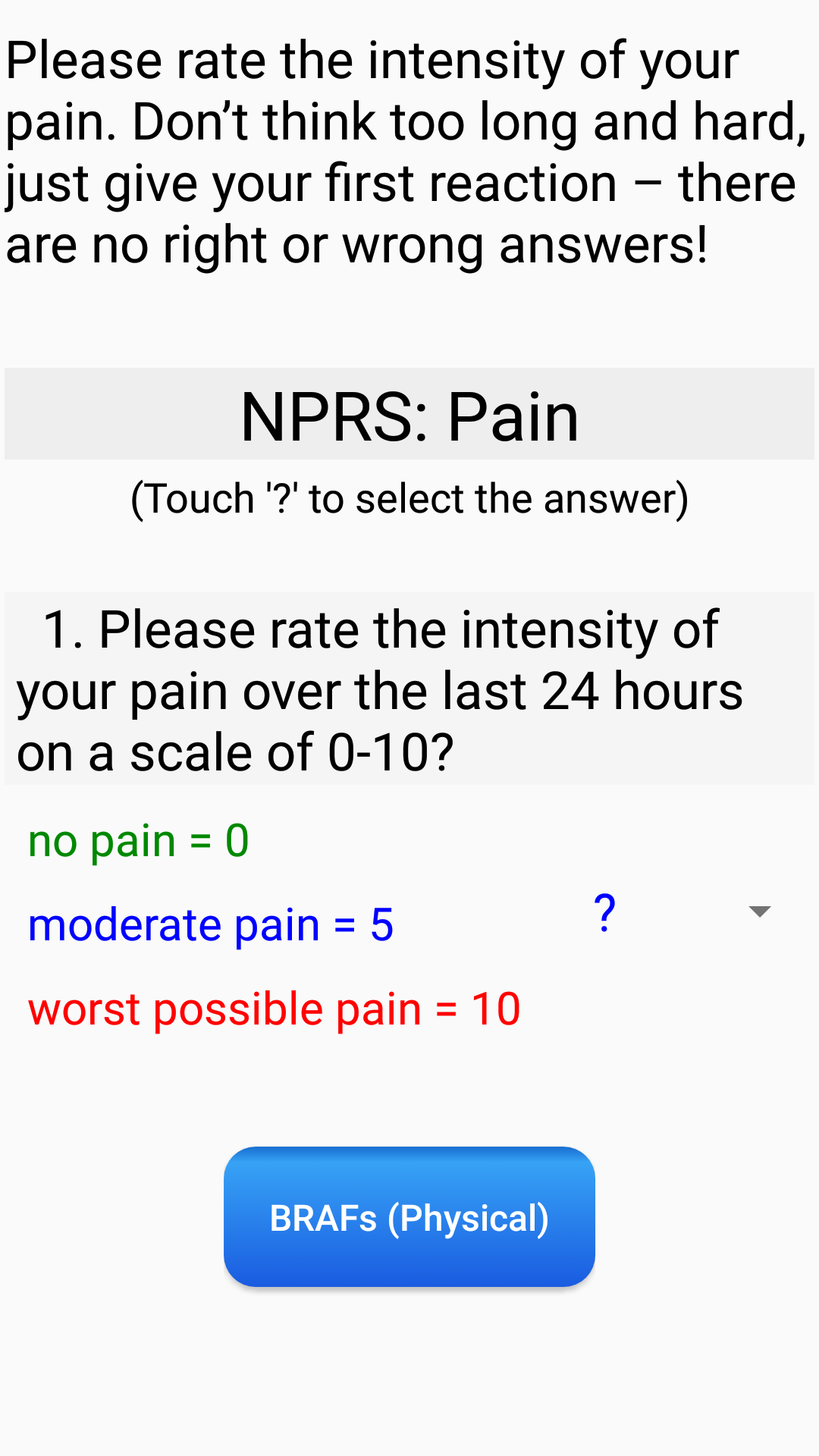
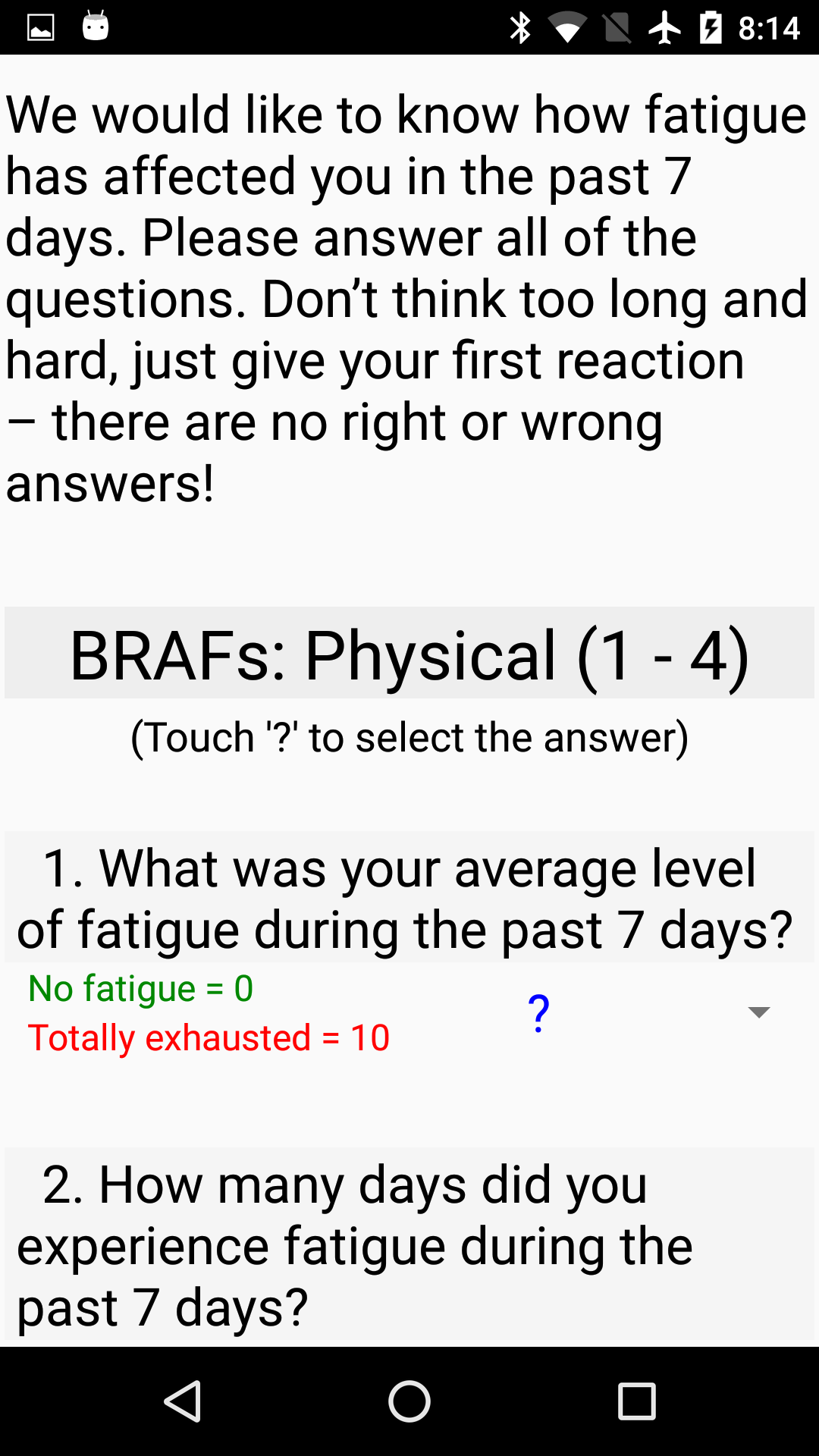
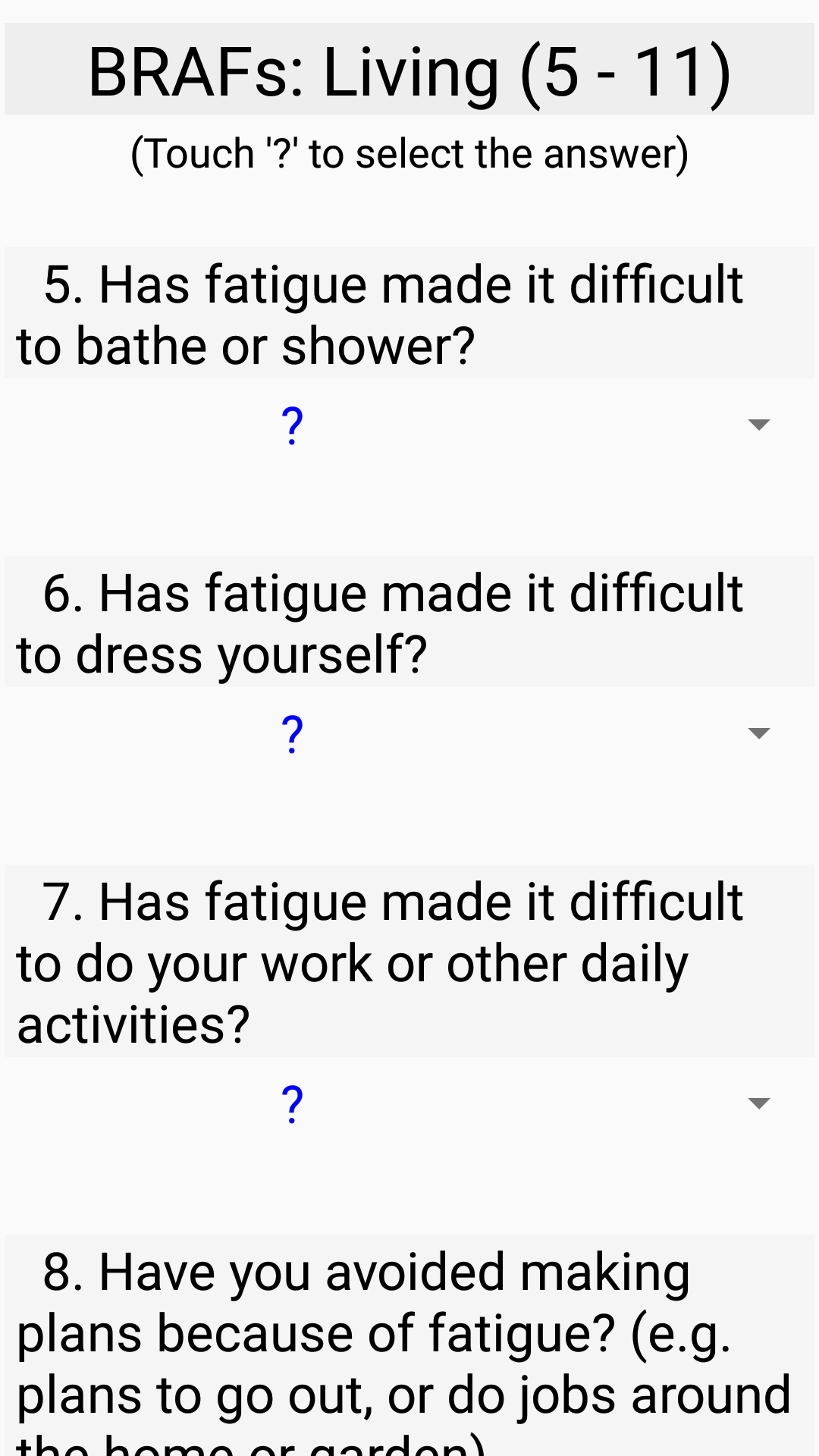
- Answer all questions. There will be 7 consecutive screens of NPRS (Pain), BRAFs and FLARE questionnaires (pic NPRS, BRAFs_1 – BRAFs_4, FLARE_1, FLARE_2).
- Use the Next button (at the bottom of each screen) to move to the Following screen.
- Use the Save button on the Last screen.
Upload:
Collected data should be uploaded to the remote Data Centre for processing.
- Click the Upload button to transfer your interview answers to the remote Data Centre.
- Wait for the Success message.
Note: For Uploading to function, your phone should be connected to Wi-Fi or has a valid Cell Data plan. If both are available, then Wi-Fi will be used.
My Progress:
After uploading the Interview, it would be processed into the clinical markers at the remote Data Centre.
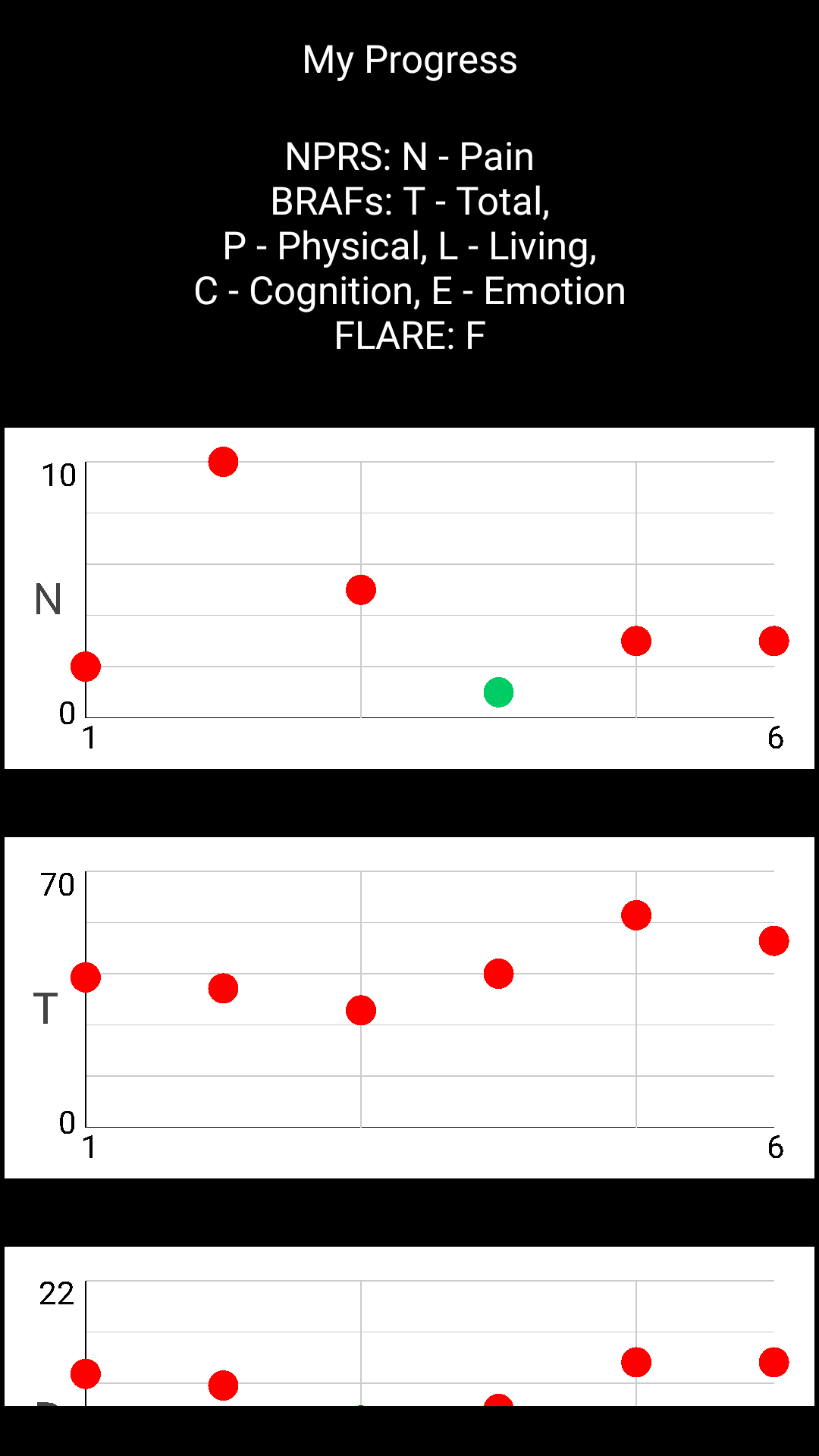
A simplified summary as several Scores charts, would be visible on “My Progress” screen.
- Click the "My Progress" button (pic Main_DAS). The 5 charts will be presented.
Note: For My Progress to function, your phone should be connected to Wi-Fi or has a valid Cell Data plan. If both are available, then Wi-Fi will be used.
Understanding "My Progress":
Your BRAFs interview answers would be divided into 4 groups as Physical, Living, Cognition and Emotion. The Score at each group as well as the Total Score would be computed. The FLARE score will be computed as well.
The My Progress Screen combines the 5 charts (pic My_Progress)
- The most Upper chart is your NPRS (Pain) Score. The lower values mean the less severe symptoms.
- Next chart is your Total Score as a summary of Scores in the all 4 groups. The lower values mean the less severe symptoms.
- Next chart is your Score in the Physical group. The lower values mean the less severe symptoms.
- Next chart is your Score in the Living group. The lower values mean the less severe symptoms.
- Next chart is your Score in the Cognitive group. The lower values mean the less severe symptoms.
- Next chart is your Score in the Emotion group. The lower values mean the less severe symptoms.
- Next chart is your FLARE score. The lower values mean the less severe symptoms.
Note: Horizontal axis presents a consecutive session number.
Footnote:
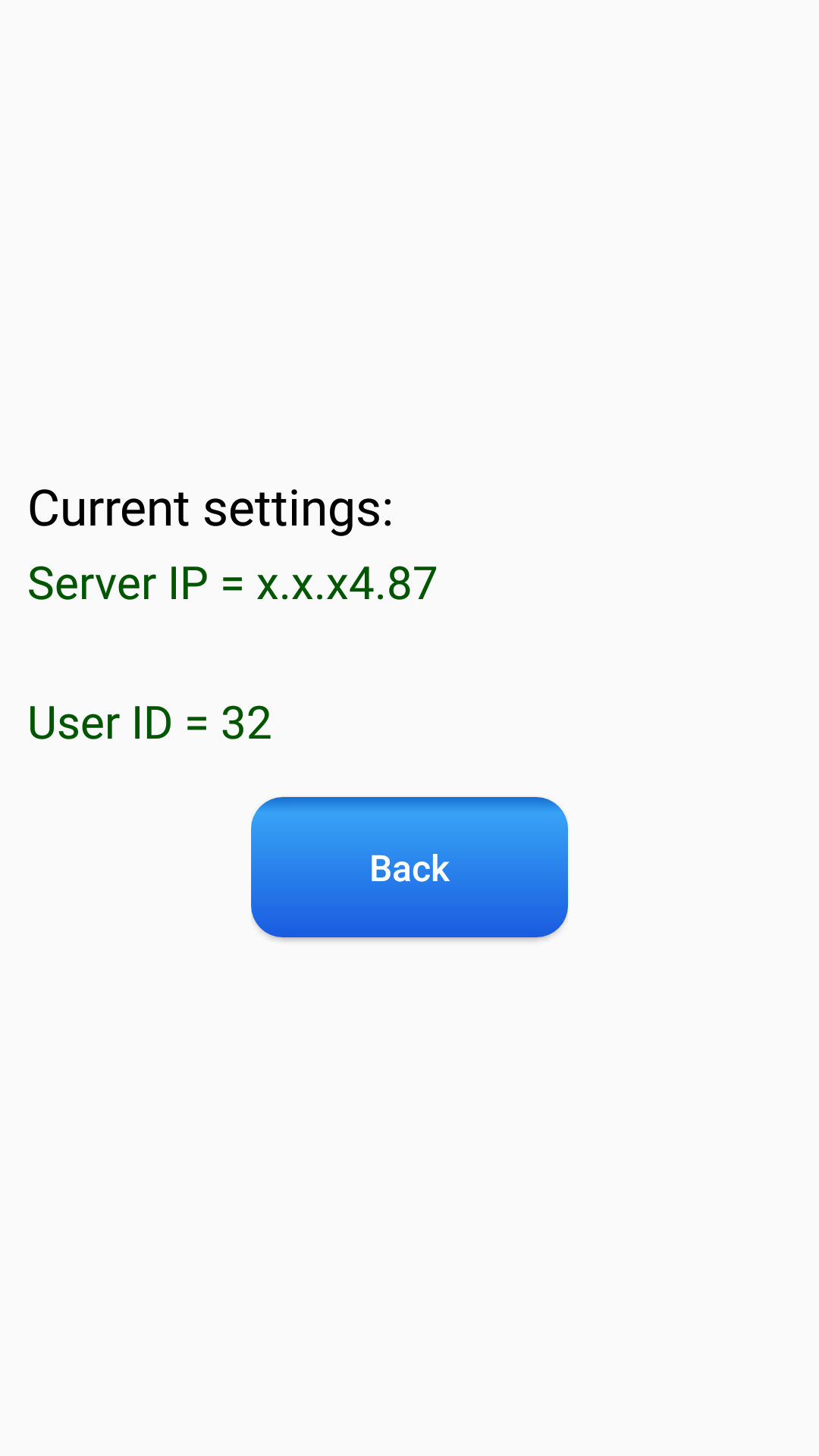
Your anonymized User ID would be assigned following the first Interview Upload.
- Click the Setting button. Look for the User ID on the Settings screen (pic Settings). You should not share your User ID but with your physician only.
Warring: If you chose to uninstall the DAS.v from your phone, then your User ID would be permanently lost.
If you decide to install DAS.v once again, then another USER ID will be assigned. For security reasons, there is no way to reconnect your phone to already collected data.
ADAS team.
Note: ADAS team keeps a right to limit / delete the patient collected data or block some particular IDs from data upload.
(Last updated February 22, 2022)
pic Main_DAS |
pic NPRS |
pic BRAFs_1 |
pic BRAFs_2 |
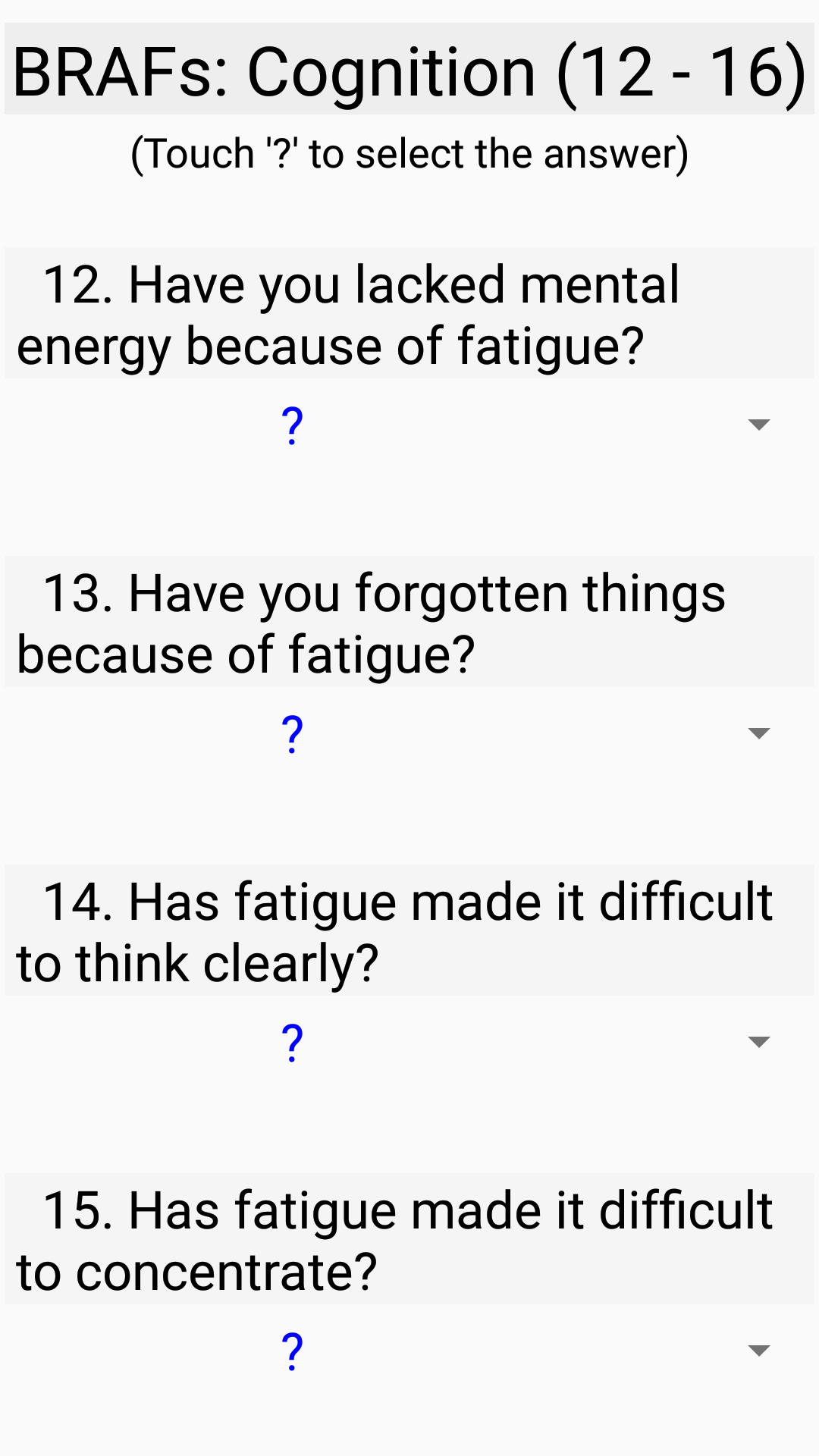
pic BRAFs_3 |
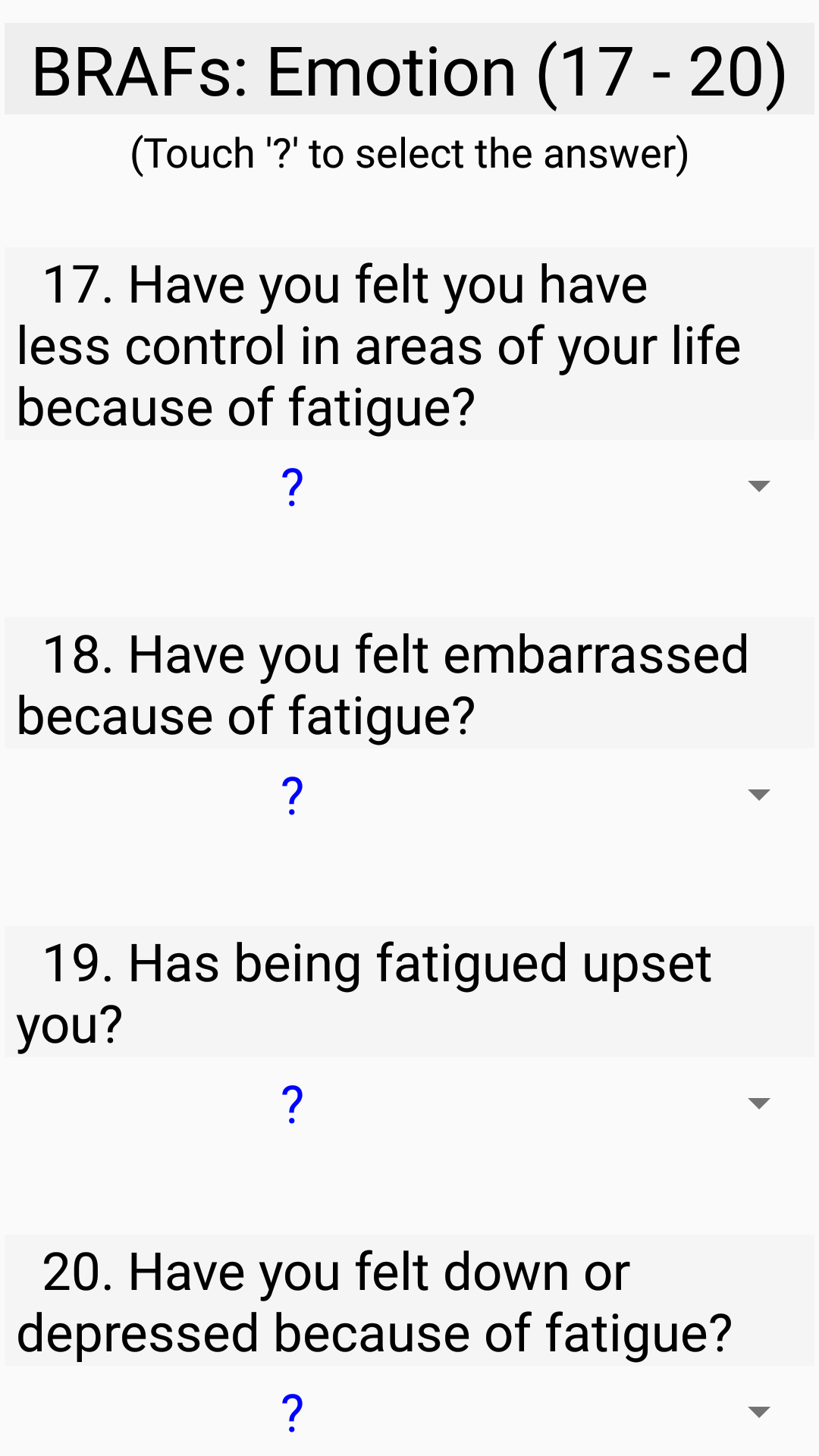
pic BRAFs_4 |
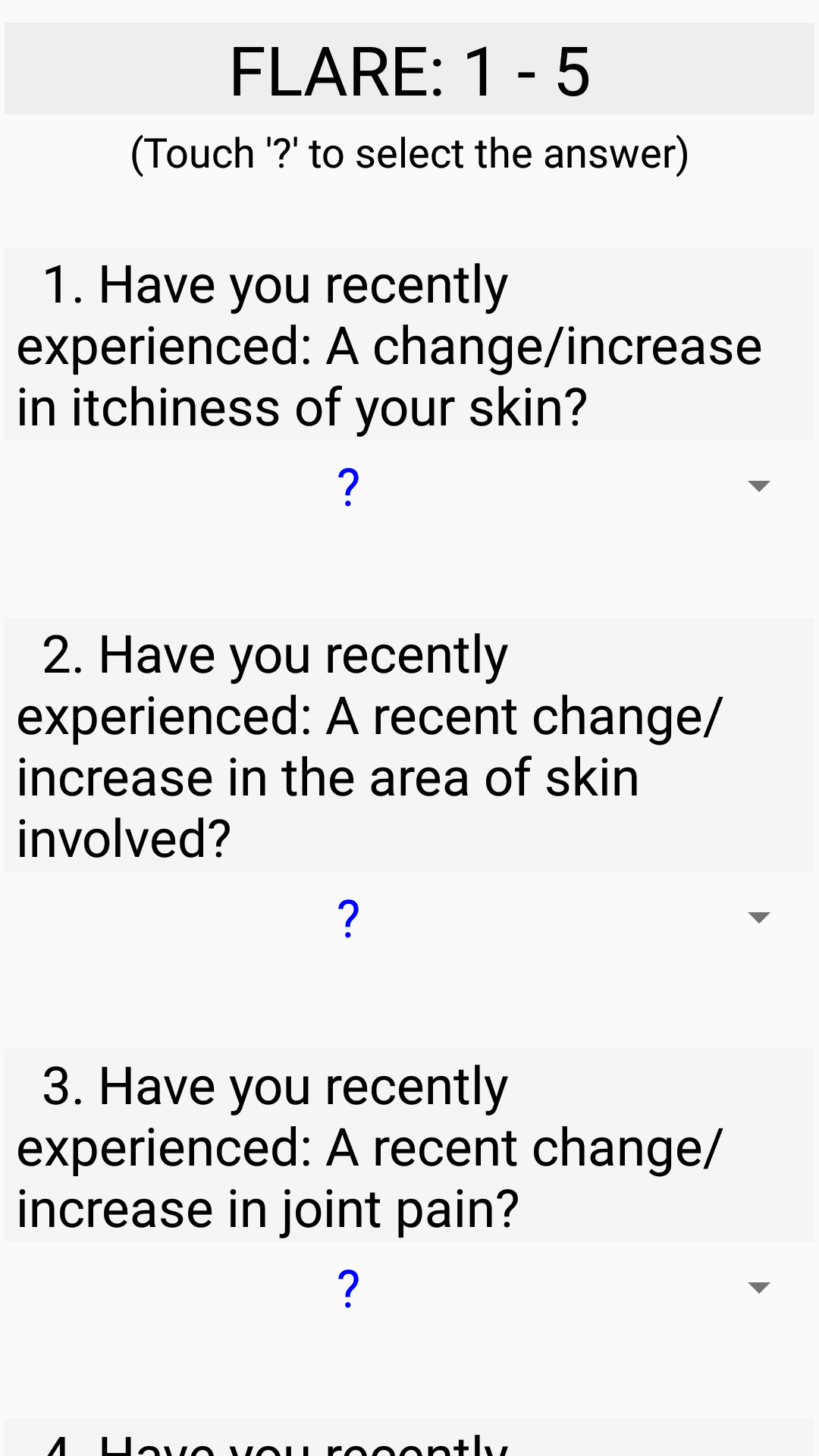
pic FLARE_1 |
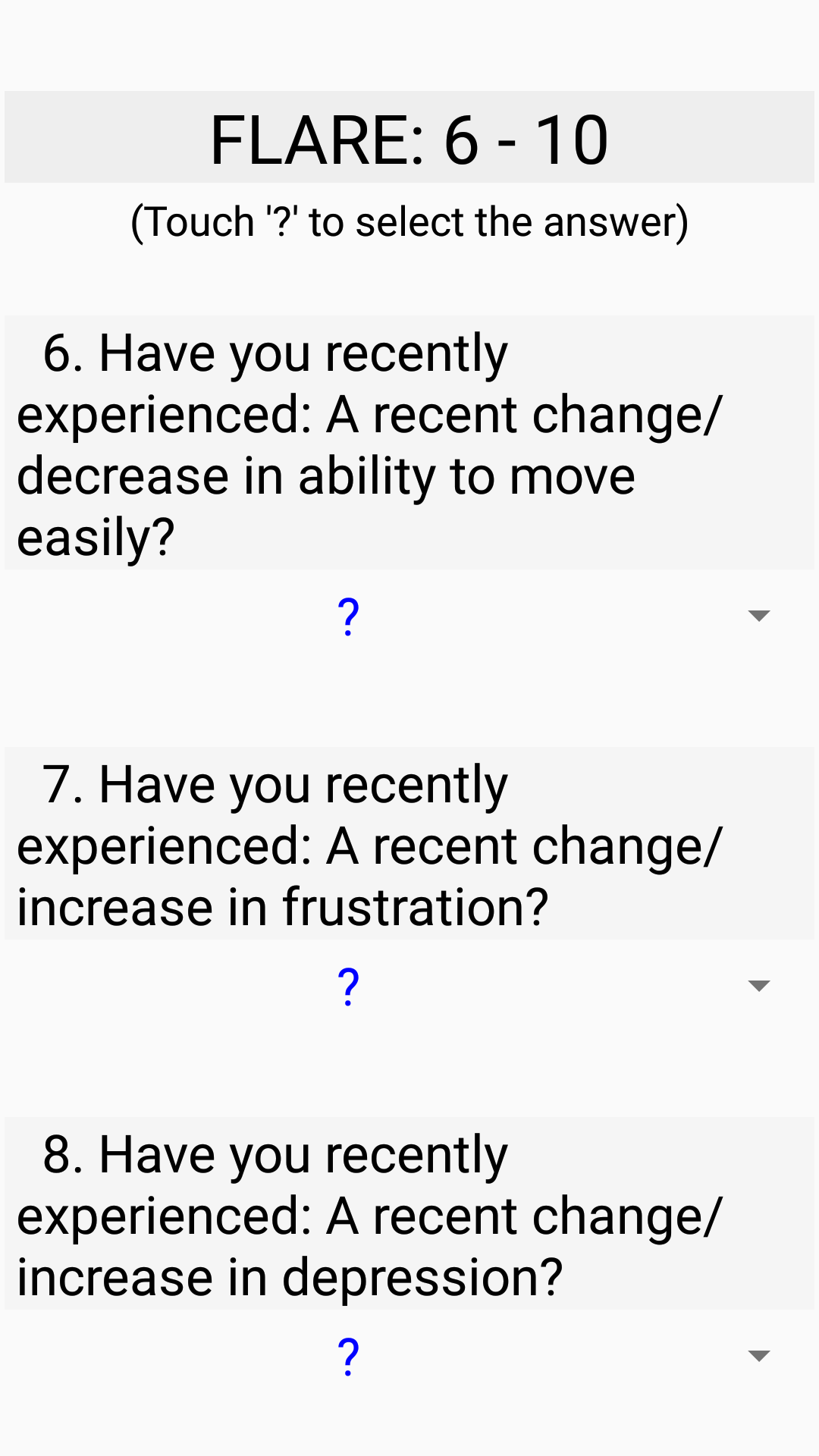
pic FLARE_2 |
pic My_Progress |
pic Settings |